

Blog · April 15, 2023
After Effects Mockup App Promo Template: iPhone 13 Pro
Download the free After Effects Mockup App Promo iPhone 13 Pro template. Hi everyone! Thanks for being here and showing interest in this After Effects template. This template…
Download the free After Effects Mockup App Promo iPhone 13 Pro template
Hi everyone! Thanks for being here and showing interest in this After Effects template.
This Adobe After Effects presentation template is easy to edit and designed specifically to showcase designs on an iPhone 13 Pro.
It is ideal for corporate promotions, demo presentations, and app promos built around phone animations. Use it as an app trailer or a quick reveal video, the possibilities are endless!
Features of this template include:
- Compatible with After Effects CS6 and later versions
- No plugins required
- Uses photos and videos
- Full HD (1920 × 1080)
- 30 fps frame rate
- 12 pre-rendered scenes
- Background color can be changed (all scenes have alpha channels)
- Photos included
- Audio not included
To customize the template to fit your needs, just follow these steps:
- Download the template by clicking this link: Download template
- Open the After Effects project: Mockup Promo App en iPhone 13 Pro.aep
- The main composition is «Principal_1080p».
- The folders to pay attention to are «Carpeta-para-Contenidos» and «Escenas».
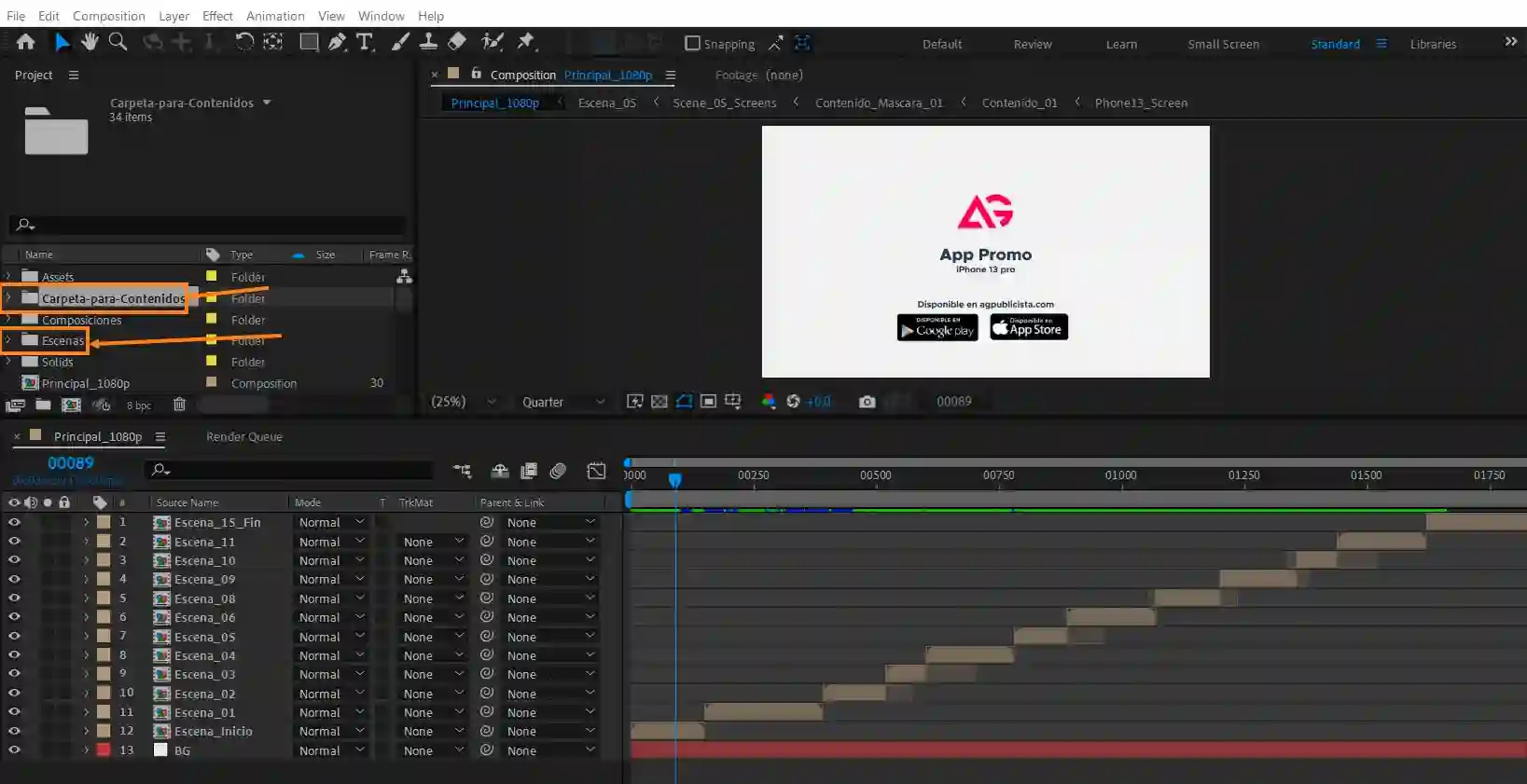
- The «carpeta para contenidos» folder is where you add the images that will display on the mobile device screen.
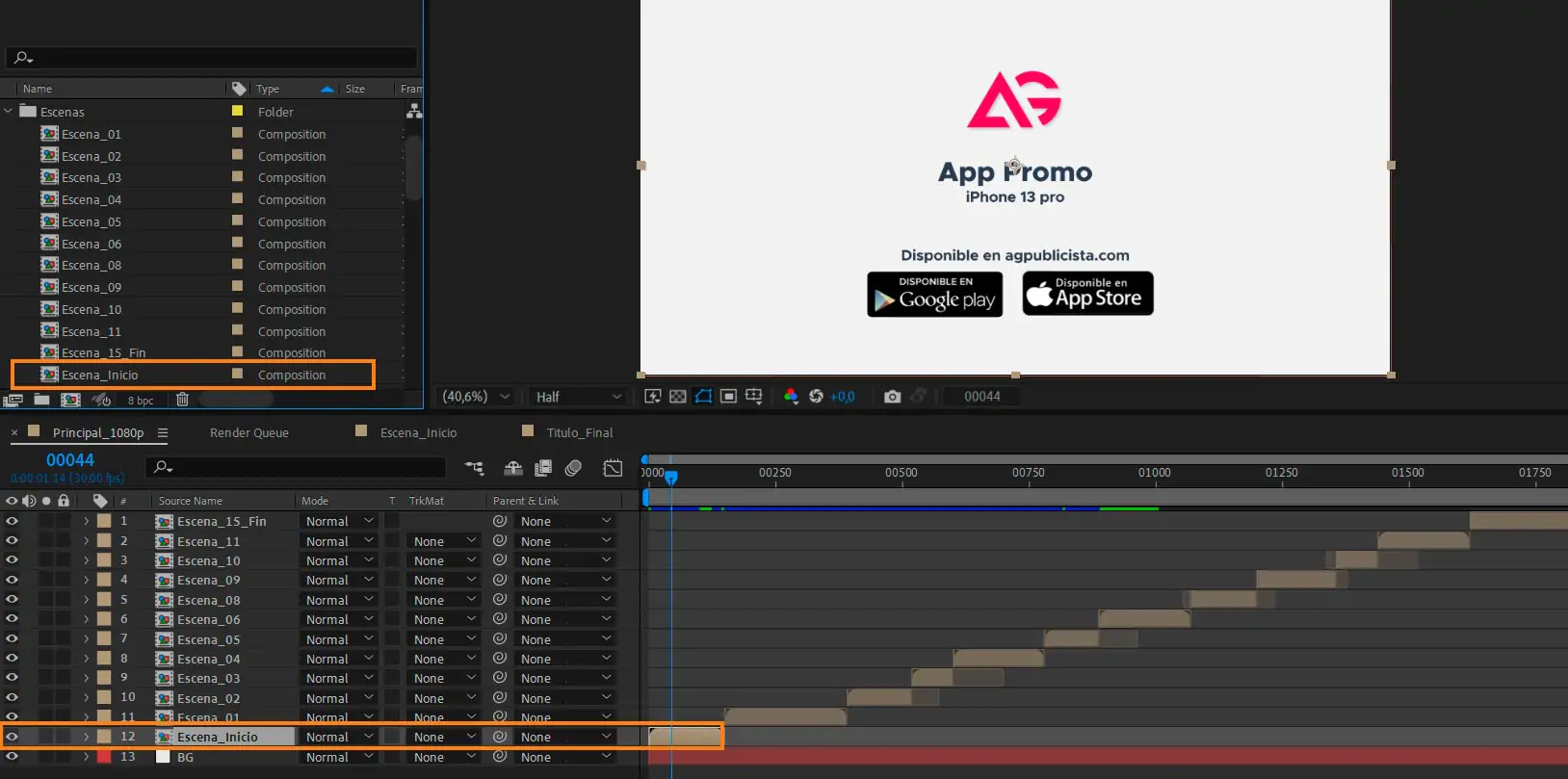
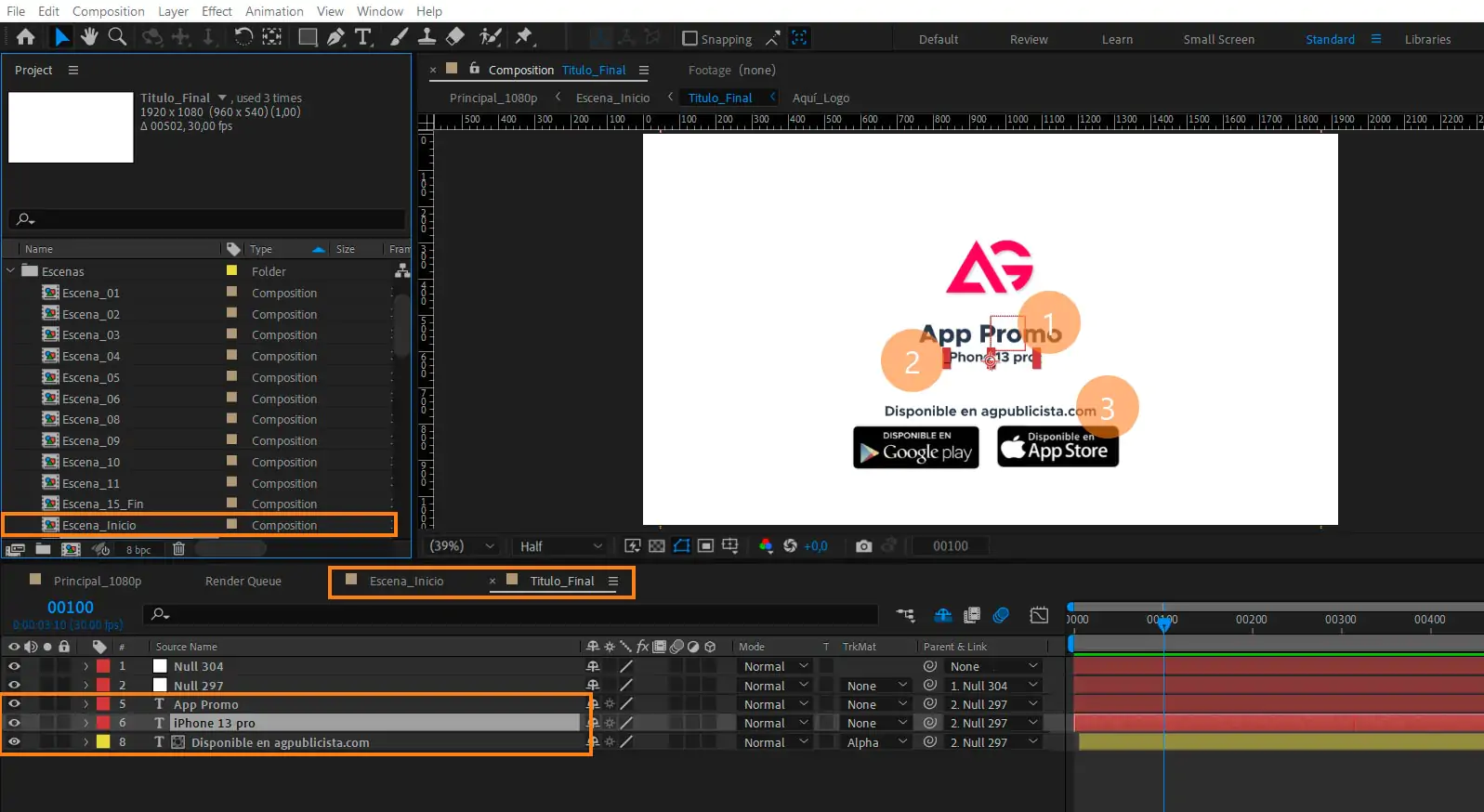
- Once you have imported your logo into the «Aquí logo» folder, go to the «Escenas» folder and then to «Escena_Inicio» to change the intro and closing text.
- Go back to the «carpeta-para-contenidos» folder, where you will see the contenido_01, 02, and 03 folders corresponding to Escena_01. In this scene three images overlap, but each image is edited in its own folder.
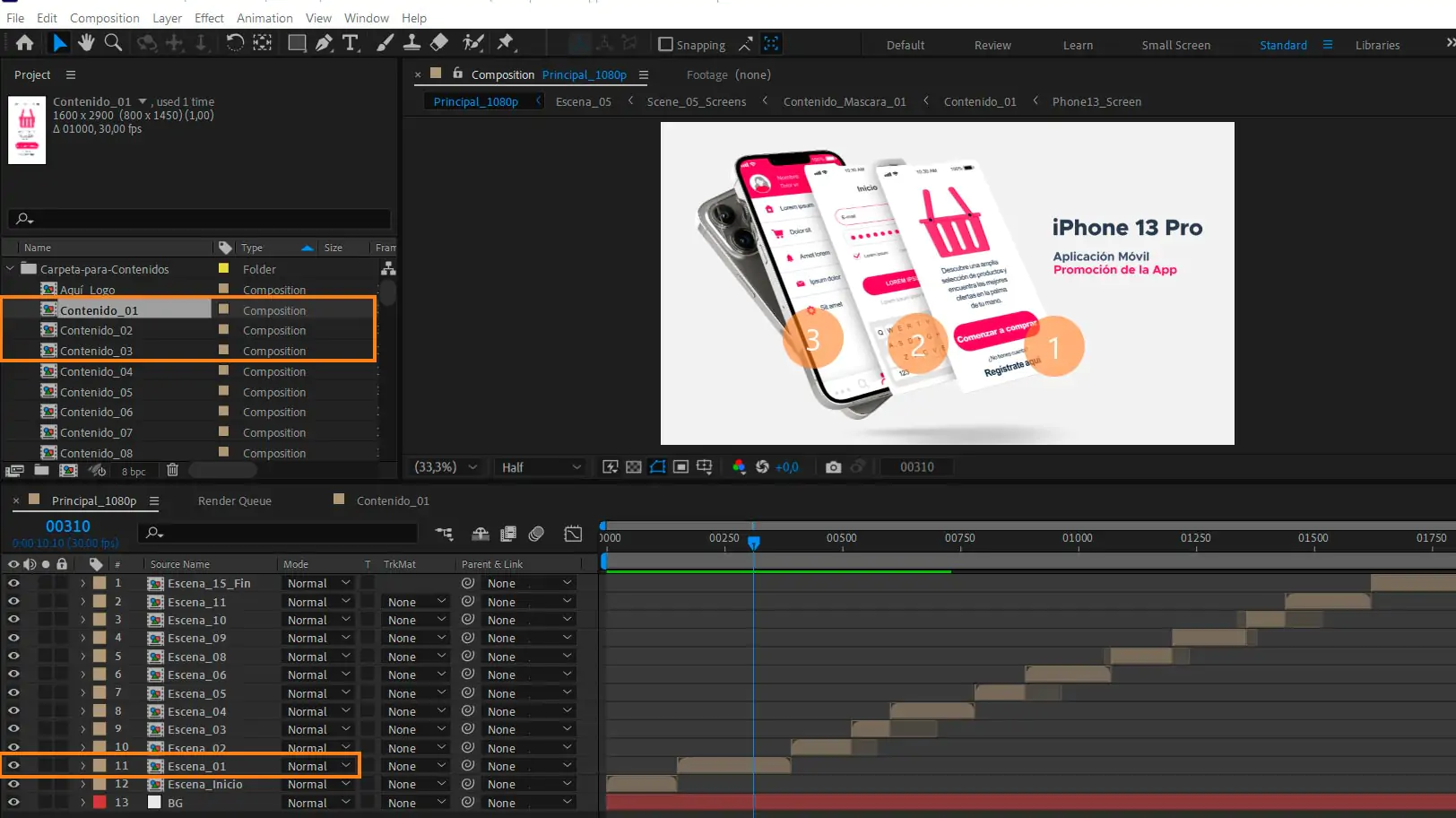
- Open the «Contenido_01» folder and find layer number 2, that is where you place your image. Repeat this same process for each of the following content folders.

I hope you find this template useful for your project. If you have any questions or comments, feel free to let us know in the comments section.
Thanks for your time, see you soon!